This guide takes you from an SAP trial account to six read-only MCP tools for the Rillsoft example. At the end, check the filter and sort order as well as connectivity.
Free to try: Everything shown runs in the free SAP BTP trial with Integration Suite and the free 30-day trial of Rillsoft Project – no customer system needed, using SAP’s sandbox data.
Before you start: Reproduce the Rillsoft SAP demo step by step — unpack the package, compare hashes and prepare a private credentials file.
Prerequisites#
| Prerequisite | Purpose and check |
|---|---|
| SAP Universal ID and SAP BTP Trial | Create the account and accept terms yourself. The demo used US East (VA), us10, with Cloud Foundry and space dev. First check that Integration Cell is available in your region. |
| SAP Integration Suite Trial with Cloud Integration and API Management | The iFlow runs in Cloud Integration; the MCP server runs in Integration Cell. These are separate runtimes. |
| Access to SAP Business Accelerator Hub | Your own sandbox API key. A production SAP system is not required. |
| Windows and Rillsoft Project 10 from build 10.0.626 | The local MCP server; start with the trial version. Check its current terms there. |
| Node.js 18 or later, Python 3, Claude Code or Claude Desktop | Node runs the bridge; Python is needed for the run scripts. Use a supported Node release. |
Allow time for provisioning: capabilities took about 60 minutes and Integration Cell another 30 minutes in the demo. These are waiting times only; account setup, the iFlow and checks take additional time. No accepted timing for the complete reproduction is available yet. Your account displays the trial duration and available services; the recorded BTP trial had a maximum duration of 90 days.
1. Trial account, subscription and first role#
You: Open your BTP subaccount. Under Services → Service Marketplace, select Integration Suite → Create, plan trial. Under Security → Users → your user → Assign Role Collection, first assign Integration_Provisioner. Sign out and back in, then open the subscribed Integration Suite application.
Check: Services → Instances and Subscriptions shows Subscribed. Add Capabilities is available in Integration Suite. If the button is unavailable, check the role collection and sign in again. The other roles are created during provisioning in the next step.
2. Capabilities, additional roles and Integration Cell#
You: Open Home → Manage Capabilities → Add Capabilities. Enable Build Integration Scenarios and Manage APIs. Leave Message Queues off for Cloud Integration and API Composition off for API Management. Developer Hub was enabled in the recorded setup, but this connection path does not use it.
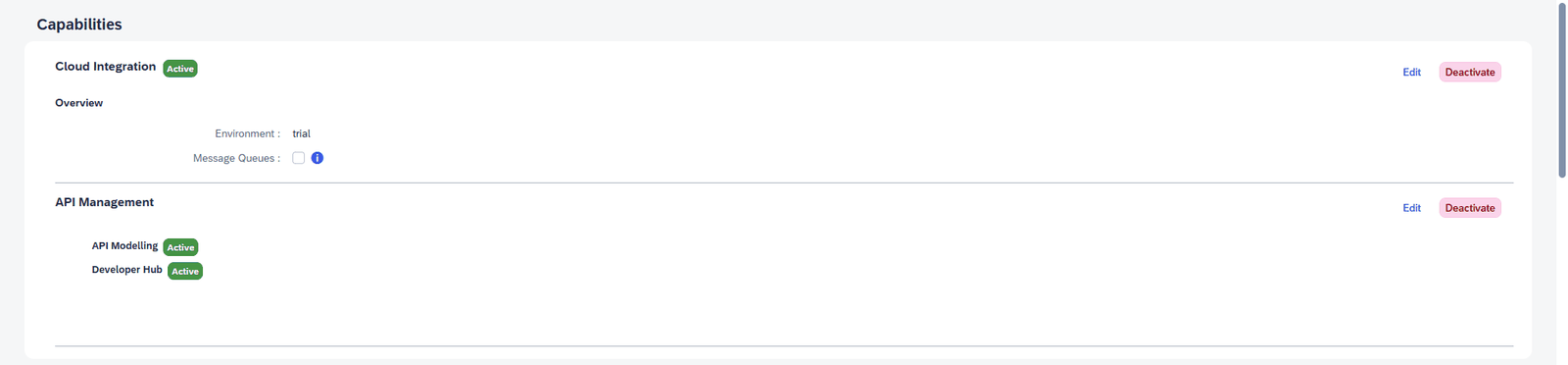
Once the capabilities show Active, assign these additional role collections in the BTP subaccount:
| Role | Purpose |
|---|---|
APIPortal.Administrator | Edit MCP servers and policies |
APIManagement.SelfService.Administrator | Manage runtimes |
PI_Administrator and PI_Integration_Developer | Create, deploy and monitor iFlows |
Sign out and back in. Open Settings → Runtimes → Integration Cell → Activate. This path does not require Classic API Management.

Check: Integration Cell shows Active. Note its virtual host locally; this becomes part of the MCP URL. If the menu only shows Home and Settings, check role assignments and renew the login. Screenshots show the 19–20 October 2026 demo: some BTP dialogs used German labels; Integration Suite used English.
3. OAuth access and sandbox key#
You: BTP subaccount → Services → Instances and Subscriptions → Create. Enter:
| Field | Value |
|---|---|
| Service | SAP Process Integration Runtime |
| Plan | integration-flow |
| Runtime Environment / Space | Cloud Foundry / dev |
| Instance Name | rillsoft-mcp-client |
| Roles | ESBMessaging.send, API.invoke |
| Grant-types | Client Credentials |
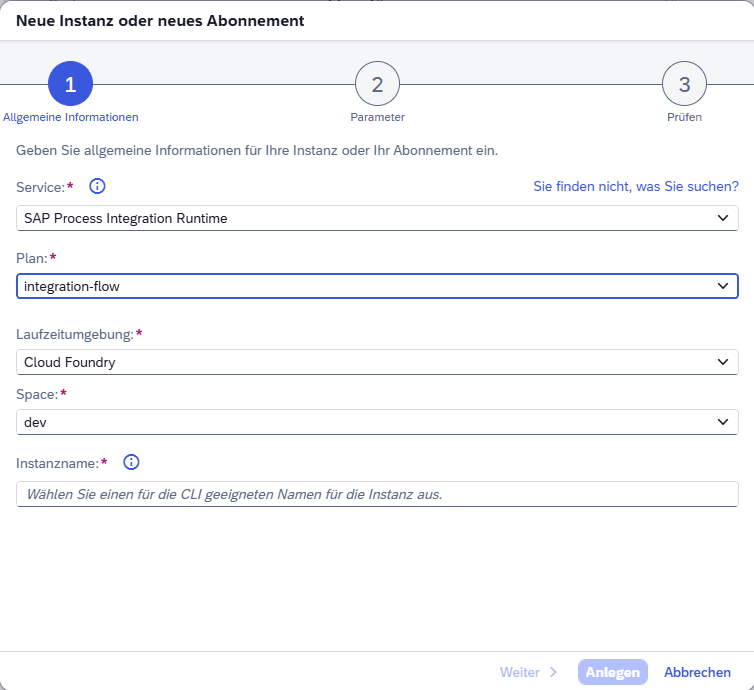
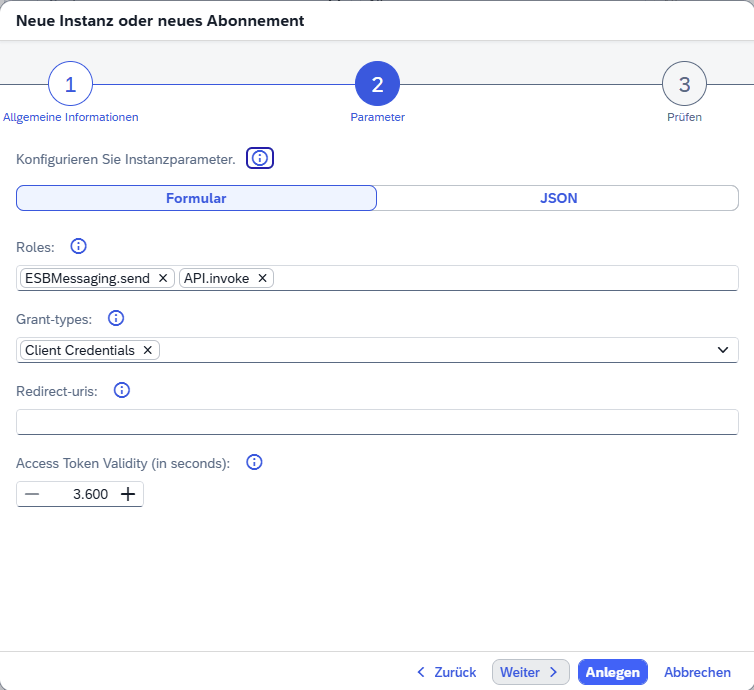
Create a Service Key for the instance, for example rillsoft-mcp-key. Transfer oauth.tokenurl, oauth.clientid and oauth.clientsecret directly into your local credentials file, never into the chat. Add SAP_MCP_URL after step 6. The sap_mcp.env.example template contains placeholders only.
For the sandbox key, open SAP Business Accelerator Hub → Settings → API Settings → Show API Key. Accept the initial terms yourself. Enter this key in the iFlow in step 4; it does not belong in the Claude configuration.
AI check: a Client Credentials token request must return HTTP 200. Do not print tokens or keys. The later check.js test uses this access. A Developer Hub Agent Subscription is not a substitute: in the demo it lacked the required scopes and tool calls returned steps.oauth.v2.FailedToResolveAPIKey or Invalid ApiKey.
4. Package and iFlow for read-only OData calls#
Route A — import the prepared iFlow: Create an empty package. Choose Edit → Add → Integration Flow → Upload and select Rillsoft_SAP_Sandbox.zip from the example package. Under Configure, enter your sandbox key in the externalized SAP_Sandbox_APIKey parameter. Import into an empty package was checked on 22 October 2026. If the ID or sender address already exists, use a distinct ID and unused sender path, then adjust your private OpenAPI accordingly. This single-artifact export does not contain the MCP server: create it in step 6.
Check: Configure shows the parameter; the artifact contains no supplied secret. Continue with step 5 to deploy and test a read-only call.
Route B — build the iFlow manually: The following settings provide the complete alternative to importing.
You: Integration Suite → Design → Integrations and APIs → Create. Package name Rillsoft SAP Demo, ID RillsoftSAPDemo, version 1.0.0, vendor Rillsoft GmbH. Then Edit → Add → Integration Flow, name and ID Rillsoft_SAP_Sandbox, Runtime Profile: Cloud Integration.
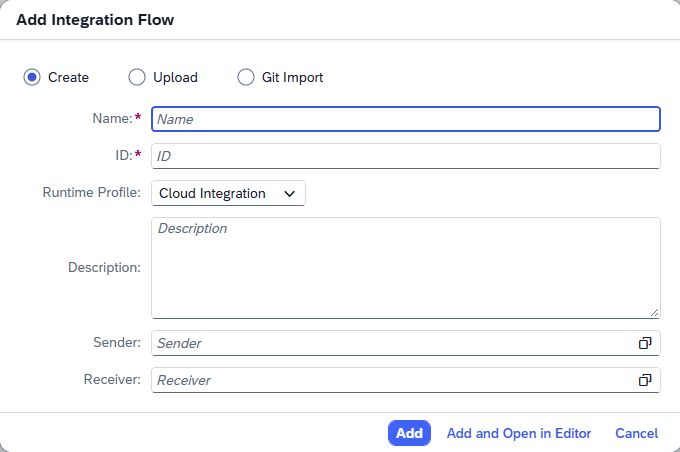
Connect Start → Content Modifier → Groovy Script → Request Reply → End. The HTTPS sender connects to Start; the HTTP receiver connects to Request Reply.
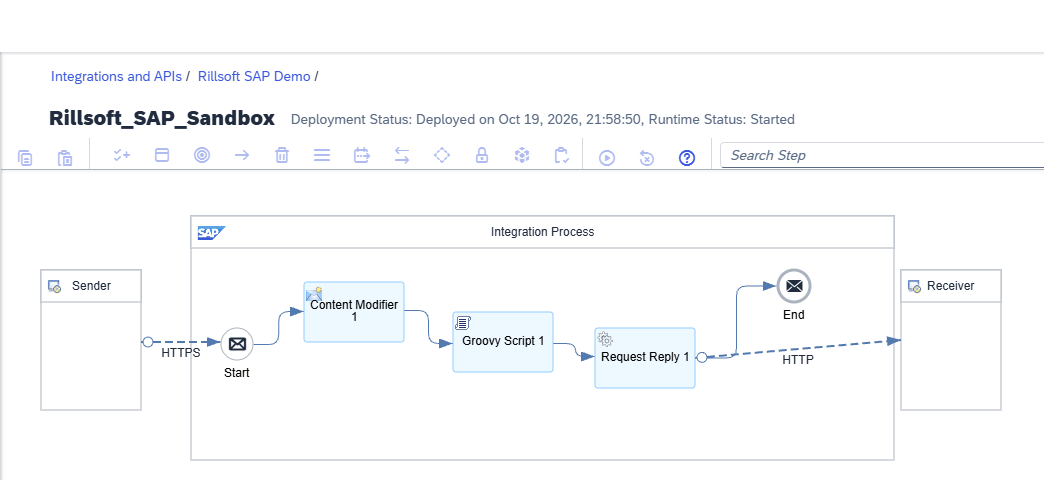
| Element and tab | Settings |
|---|---|
| HTTPS sender, Connection | Address /rillsoft-sandbox/*; Authorization User Role; User Role ESBMessaging.send; CSRF Protected off because all operations are GET. |
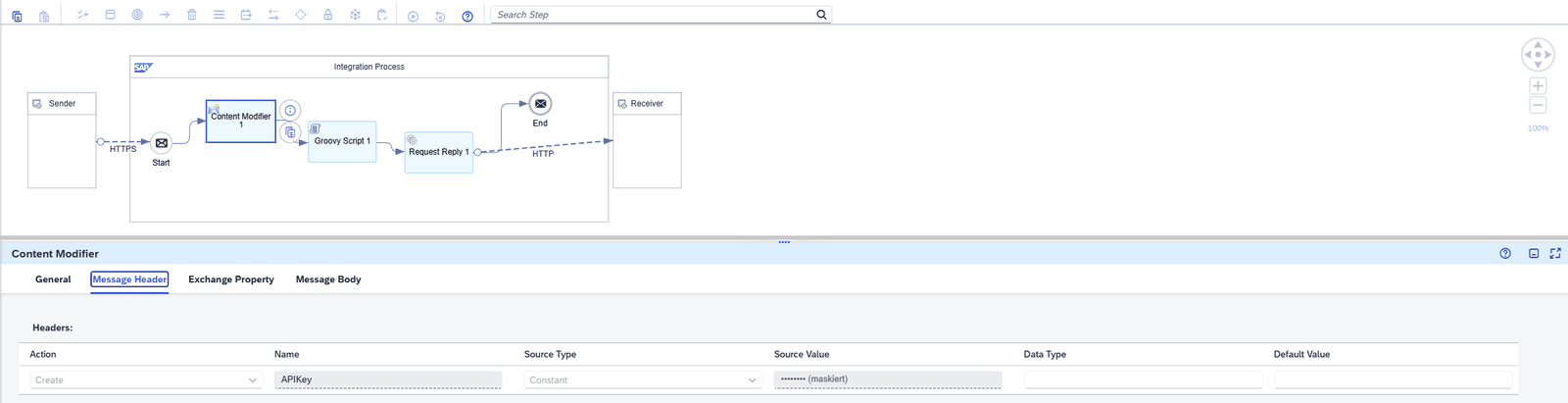
| Content Modifier, Message Header | Action Create; Name APIKey; Source Type Constant; Source Value your sandbox key. |
| Groovy Script, Processing | Upload and select iflow_odata_params.groovy from the package as a script resource; leave the function empty (processData). |
| HTTP receiver, Connection | Address below; Query empty; Proxy Type Internet; Method GET; Authentication None (the sandbox checks the APIKey header); Timeout 60000 ms. |
| HTTP receiver, Header Details | Request Headers `APIKey |
HTTP receiver address, unchanged including its placeholders:
https://sandbox.api.sap.com/s4hanacloud/sap/opu/odata/sap/${header.CamelHttpPath}?${header.CamelHttpQuery}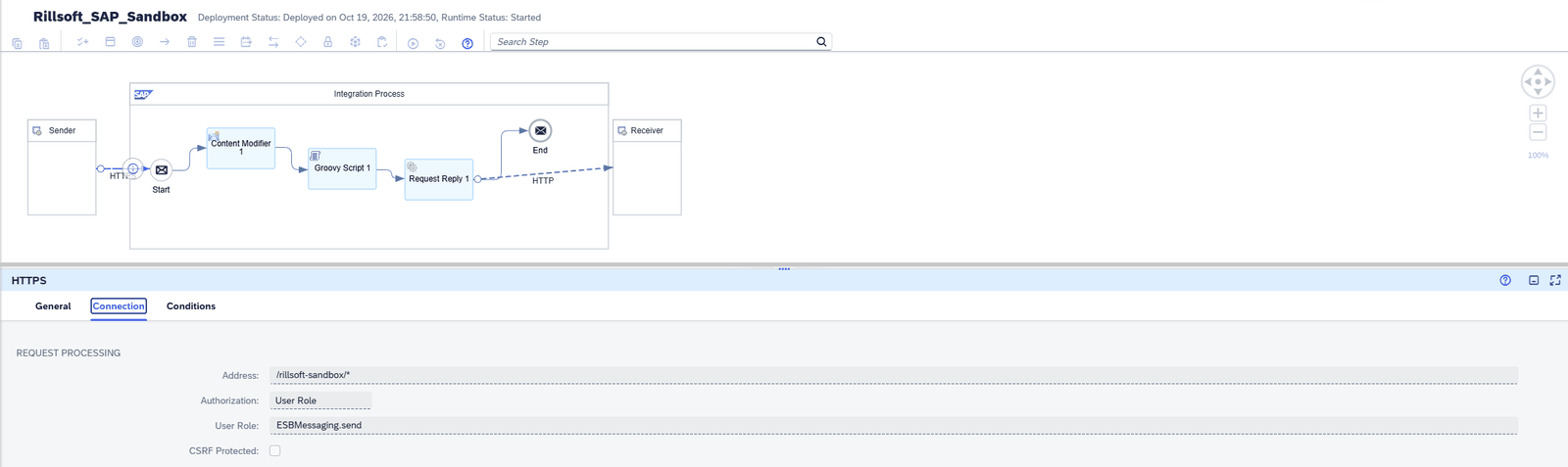
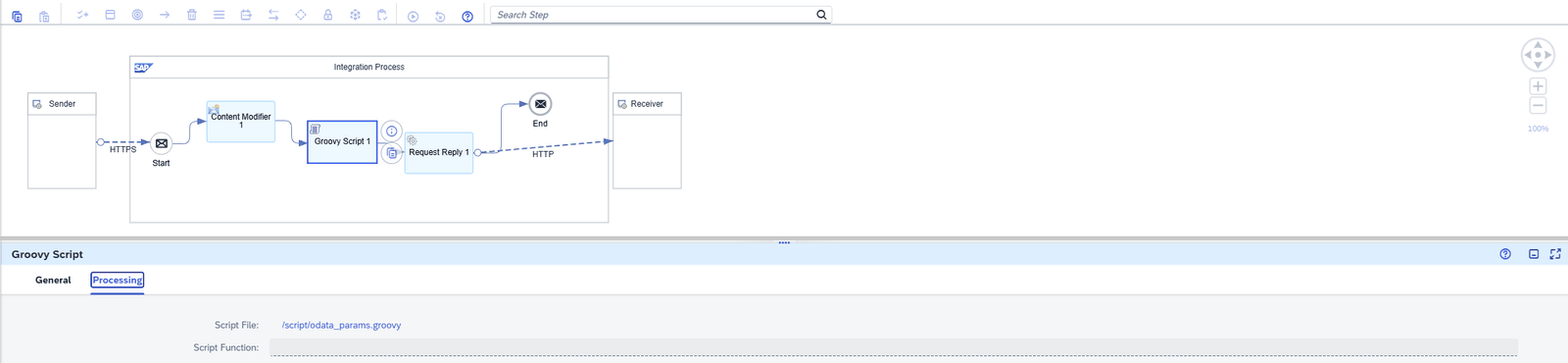
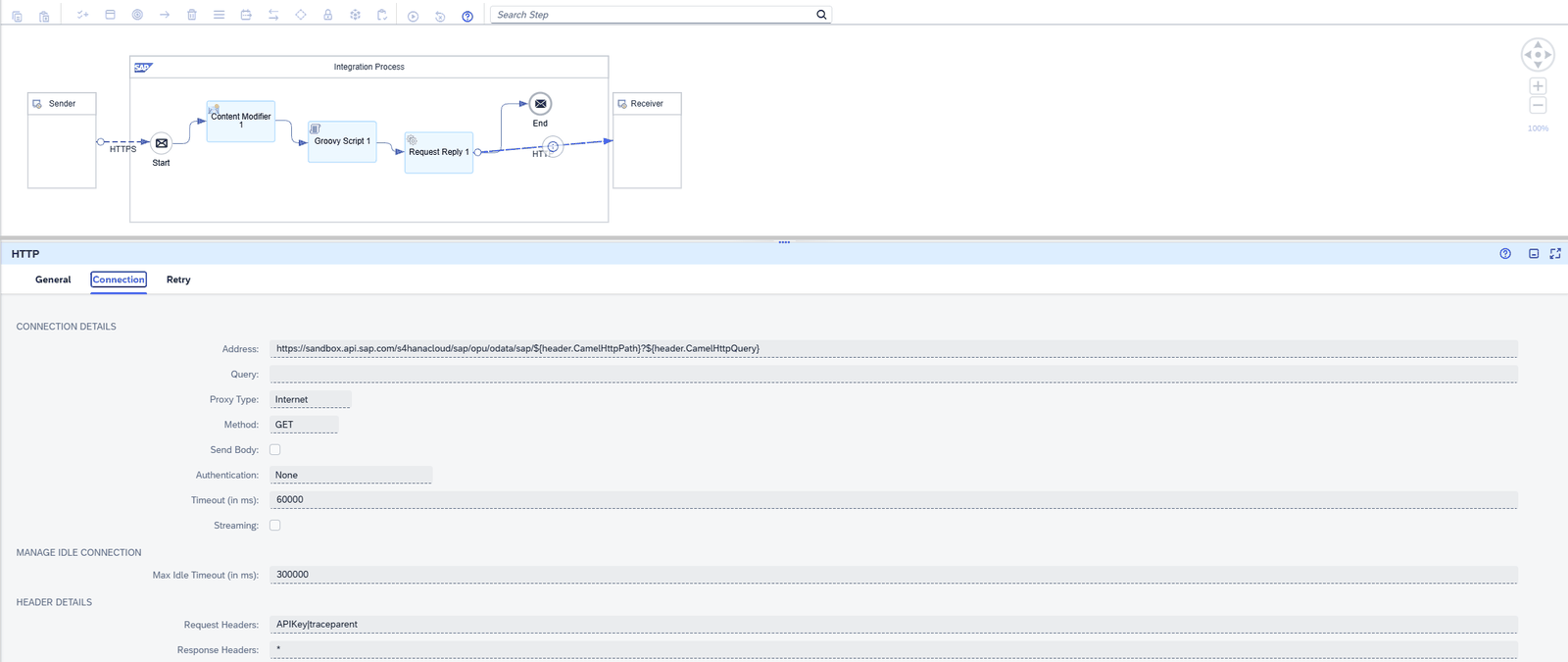
Why these settings: the gateway sends filter and orderby without $. The Groovy script prefixes only the parameter names, leaving values unchanged. Put the query in Address, because the separate Query field encodes it again. An API artifact instead of the iFlow produced Invalid token detected at position 0 for values containing spaces.
Check: briefly move an inserted step: its connecting arrows must move with it. Otherwise it is only visually on the line and deployment can return deployment failed. Never share an export containing an actual key. Before a later export, replace the constant with a clearly named placeholder; customer-system credentials belong in Security Material.
5. Deploy the iFlow and check the backend#
You: Deploy → Cloud Integration. Expect successfully deployed. Under Monitor → Integrations and APIs → Manage Integration Content, the iFlow must show Started. Keep its HTTPS endpoint locally.
AI: use the OAuth token for a read-only iFlow test. Append this path and query after its /http base:
/rillsoft-sandbox/API_WORK_CENTERS/A_WorkCenters?$top=3&$select=WorkCenter,Plant&$filter=Plant eq '1710'&$orderby=WorkCenter descCheck: exactly three work centres, all in plant 1710, sorted by work centre descending. HTTP 200 without checking the filter is insufficient. If the iFlow returns HTTP 500 with an MPL ID, open Monitor → Integrations and APIs → Message Processing → Error Details. An invalid OData field can also appear externally as HTTP 500. For noCredentials, check APIKey in the Content Modifier and Request Headers.
6. MCP server and policies#
You: In the package, select Edit → Add → MCP Server. Choose HTTP Endpoint with OpenAPI Specification, not API.
| Field | Value |
|---|---|
| Method / File | Upload / openapi.json from the package |
| Source / URL | URL / iFlow base address up to and including /http |
| Name / ID | Rillsoft_SAP_Feinplanung_MCP |
| MCP Path | /rillsoft-feinplanung-mcp |
| Version | 1.0.0 |
| Runtime Profile / Virtual Host | Integration Cell / your host from step 2 |
The published OpenAPI deliberately uses example.invalid instead of account addresses. Before uploading, create a private copy with configure_openapi.py --iflow-url <HTTPS-base-through-http> --gateway-url <MCP-URL> --output <private-file.json>. Upload that copy and use the iFlow base in Source / URL. Do not publish the customised file.
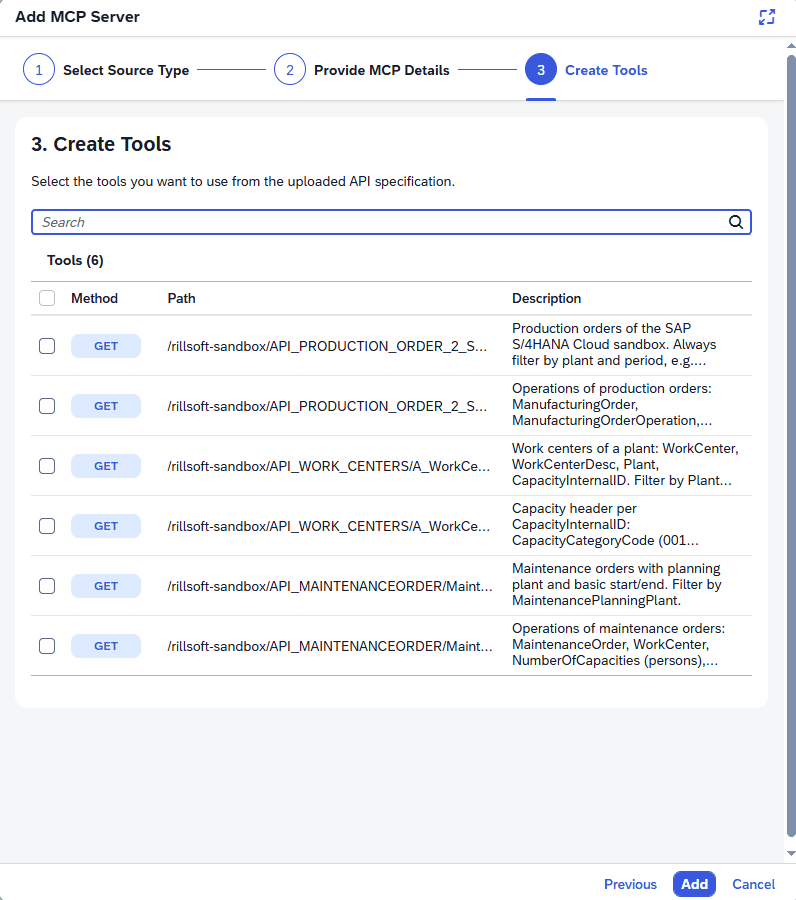
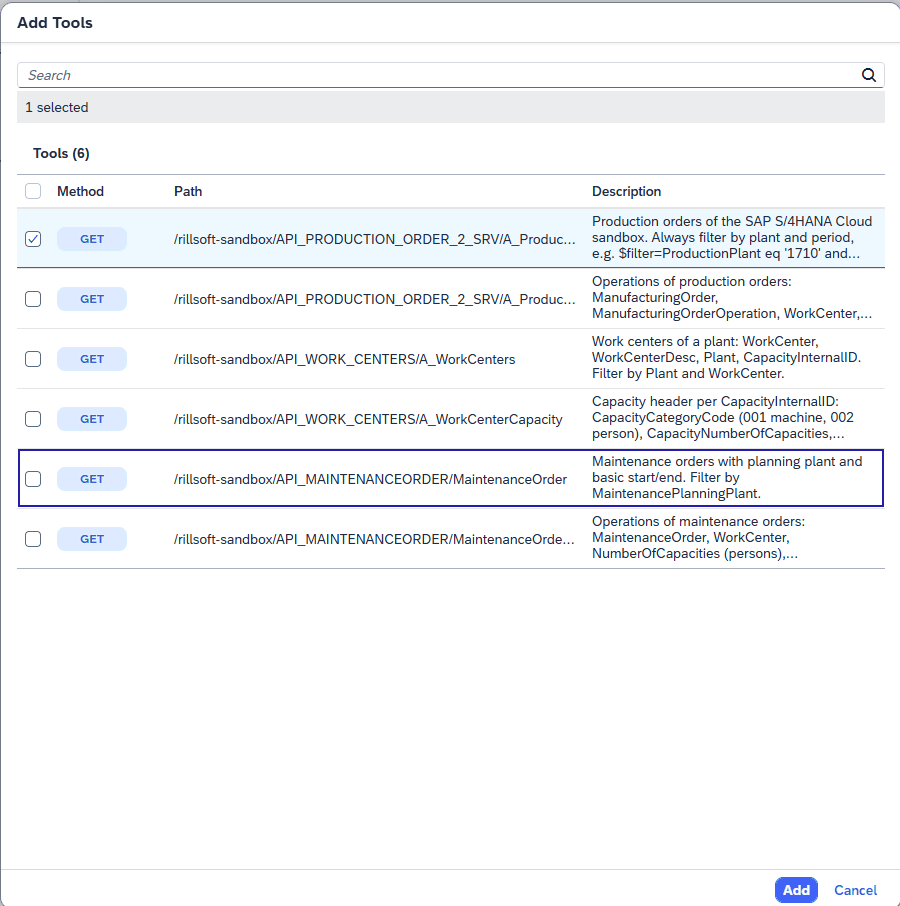
Check that MCP Configuration → Tools lists 6 tools. “Select all” did not take effect in the demo wizard. Add missing tools individually through Add Tools and check the selected count after each checkbox.
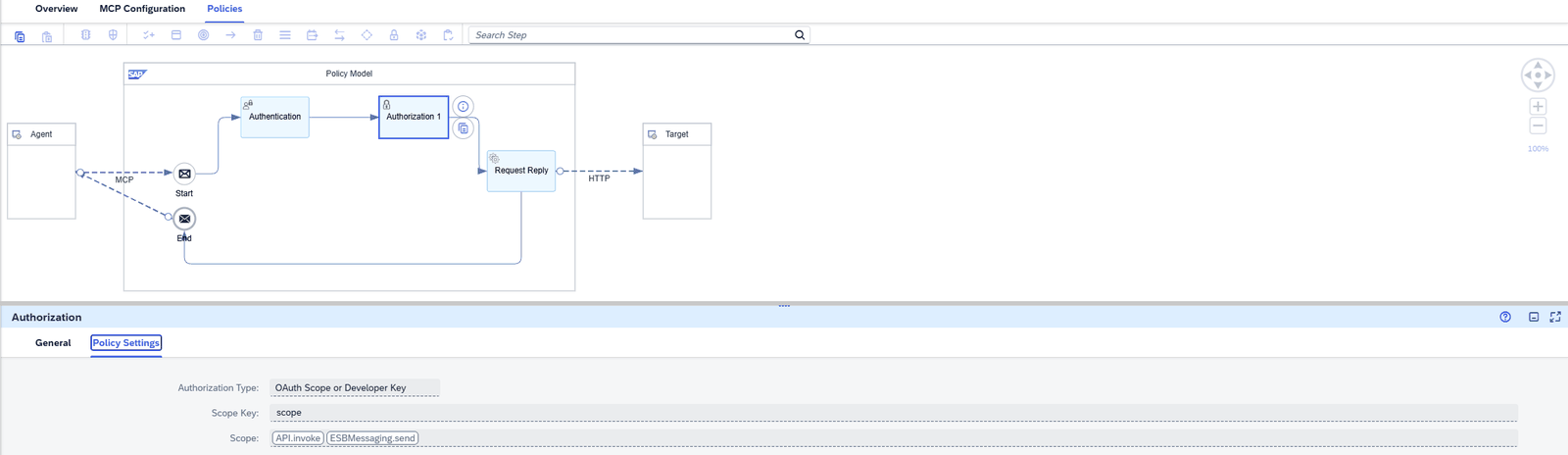
Under Policies, set Authentication types Client Certificate and OAuth, with External OAuth (OIDC) off. Authorization: OAuth Scope or Developer Key, Scope Key scope, Scopes API.invoke and ESBMessaging.send. This demo allows those two scopes; the step 3 token carries both. At the HTTP target use Request/Response Headers * to forward the Bearer token to the iFlow, whose sender checks ESBMessaging.send again.
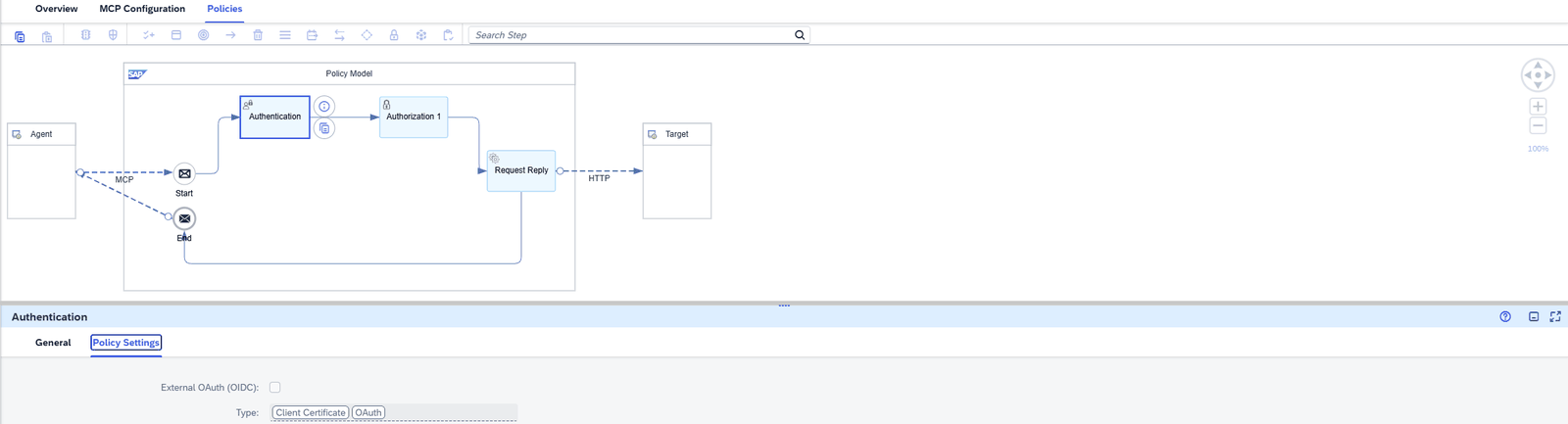
Check: Deploy → Integration Cell, status Started. Keep Log Level Info. Enter the displayed MCP URL as SAP_MCP_URL in your credentials file. For artifactNotFound, verify the host and path of the server actually deployed.
Frequently asked questions#
Do I need SAP Integration Suite?#
Yes, for this tested path: Cloud Integration hosts the iFlow and Integration Cell hosts MCP Gateway. SAP describes the setup in its gateway tutorial.
Recognise errors#
Messages from the gateway, iFlow and sandbox – such as FailedToResolveAPIKey, noCredentials, HTTP 500 with an MPL ID or tools/list returning 0 instead of 6 tools – are listed with remedies in the error table of the reproduction guide: Recognise and resolve errors.
Verify the connection#
Connect SAP and Rillsoft in one AI client.
Sources and trademarks#
Demo evidence: Rillsoft runs of 20 October 2026 for battery manufacturing, maintenance in plant 1010, line 26XR1 and four lines, each using Rillsoft Project 10.0.626. This guide was compiled from that evidence on 22 October 2026; the figures were confirmed on 24 October 2026 in the free prompt run (German and English, through to the report).
This example uses the MCP Gateway in SAP Integration Suite, which SAP describes as its intended access path for external AI agents connecting to SAP systems. The SAP API Policy, particularly section 2.2.2, and the terms and access restrictions of the services used still apply. The demo only reads sandbox data and does not write changes back to SAP.
SAP, SAP S/4HANA, SAP BTP and SAP Integration Suite are trademarks or registered trademarks of SAP SE or its affiliates in Germany and in other countries. This guide is published by Rillsoft GmbH and does not represent SAP certification or partnership.
Back to Connect Rillsoft Project to SAP.
- Product version
- Rillsoft Project 10.0.626; SAP Integration Suite Trial