All people, companies and projects shown are synthetic Rillsoft sample data – from the shipped industry packages or, where stated, from a test project.
The prompt
Turn my Excel sheet into a project in Rillsoft Project – ask me whatever you need.Changes the project (one undo step)
Show the detailed prompt
I have an Excel sheet – a project plan, a schedule or a to-do list – and want to turn it into a project in Rillsoft Project. Guide me step by step:
1. Ask me for the file and look at what it contains. Ask about anything missing instead of assuming it: when the project starts, whether durations mean hours, days or weeks, in which order the tasks run, what a title row is. Write a new sheet from it – the original stays unchanged: one row per task, columns WBS; Name; Start; Finish (optionally Comment), headings in row 1, date format DD.MM.YYYY hh:mm, WBS codes stored as text, every row with start and finish. A title row is the project name, not a subproject.
2. Save the new sheet as "CSV UTF-8 (Comma delimited) (*.csv)" and tell me the delimiter.
3. In Rillsoft Project: File > Import > text file in CSV format. Enable the option that the first row contains only headings, set the delimiter and the date and time format (DD.MM.YYYY hh:mm), choose structure variant 1 (WBS code), Next.
4. Column mapping: check and correct the preset – WBS → WBS, Name → Name, Start → Start, Finish → Finish, Comment → Notes. Each target field only once; change from the bottom up. Further columns in order to user-defined field 1 … 20 (at most 20). Finish.
5. After the import check structure, dates, calendar and milestones without dates (project start or today?) and the project finish; set the project name (title row of the sheet) and the names of the user-defined fields (project properties › user fields); add resources and dependencies in Rillsoft Project.
6. Save the project via File > Save As as .rpj.
Source: https://rp-doc.rillsoft.de/rst/05-referenzsystem/schnittstellen-und-expertenfunktionen/import.html#textdatei-in-csv-format-importierenIn your words
- To-do list: Here is my task list from Excel. Turn it into a project in Rillsoft Project.
- List without dates: My sheet only has tasks and estimated durations. Plan it as a project starting next Monday.
- Plan in weeks: Our Excel plan counts in calendar weeks, not dates. Bring it into Rillsoft Project.
What you need
- An Excel sheet with tasks – project plan, schedule or to-do list. Layout and column names do not matter; the AI prepares the sheet.
- Answers to the AI’s questions: the file itself, the project start, whether durations mean hours, days or weeks, and order and outline where needed.
- Rillsoft Project with the import of a text file in CSV format in the File menu.
- For the follow-up via MCP (project name, milestones, saving): run the import in a freshly started instance with the empty start project. If a project is already loaded, Rillsoft Project opens a second instance without MCP for the import.
What you get
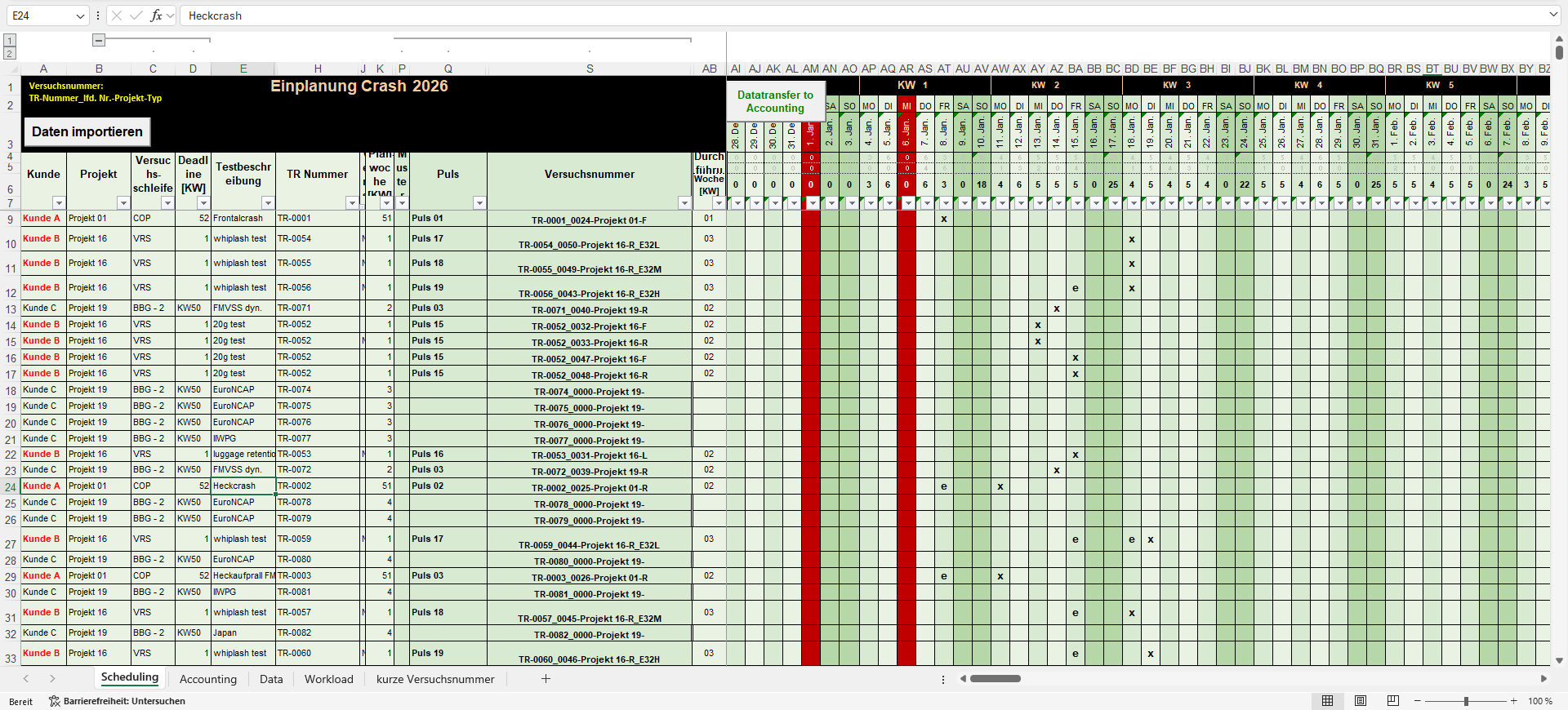
A six-step guide tailored to your sheet – and an .rpj file at the end. The images show a test with a booking plan from Excel (data anonymised, dates moved to 2026/27): 192 crash tests, their dates as marks x and e in a day calendar or only as a plan week, next to them 20 extra columns such as test number, location and test duration. The AI asked for the outline (customer › project › test), for the meaning of the marks (x = test day) and for rows without a mark (Monday of the plan or execution week), calculated the finish from the test duration in working time and wrote a CSV file with 25 columns.
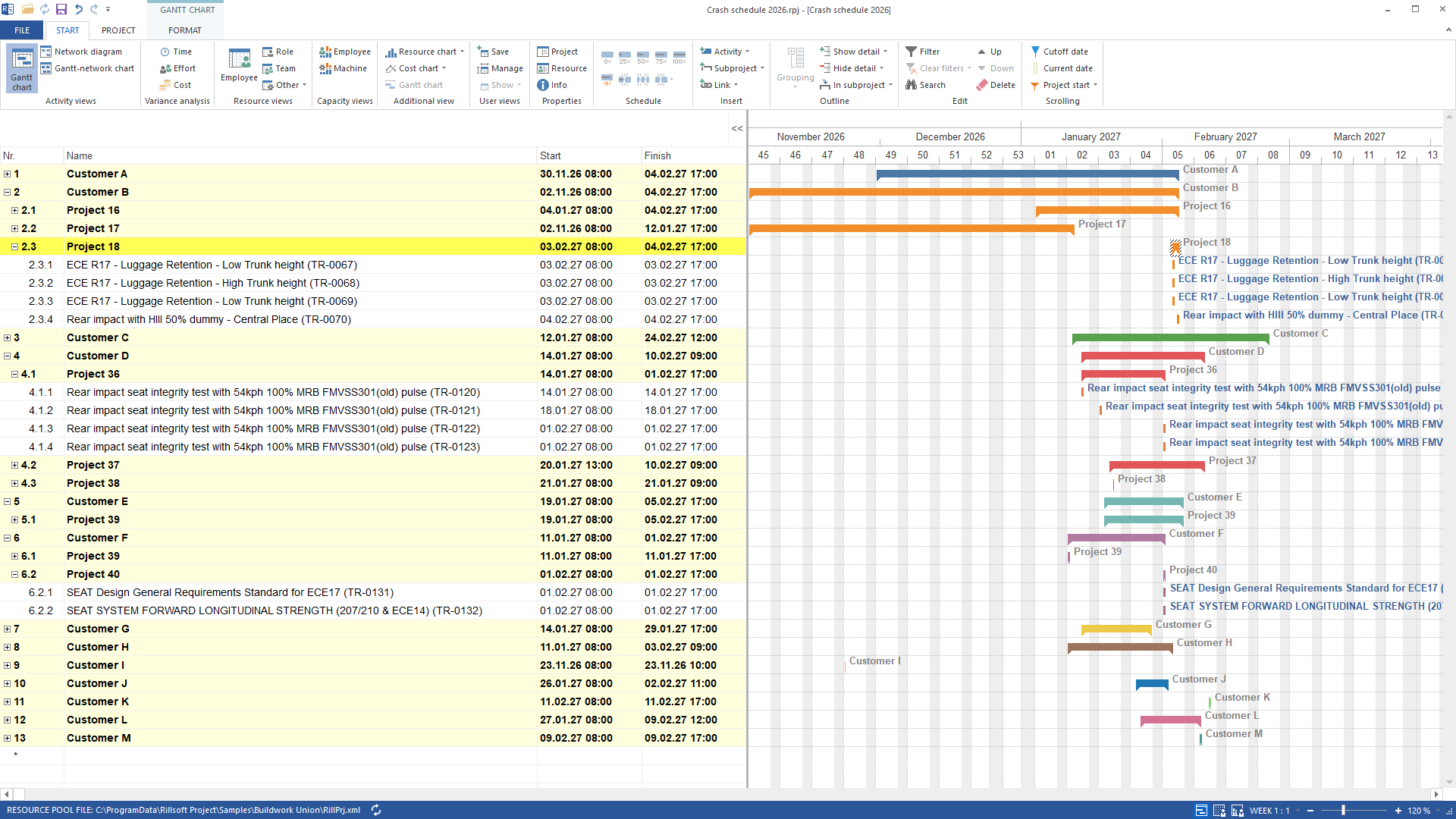
After the import the project held 13 customers, 55 projects and 192 tests with the dates of the sheet, from 2 November 2026 to 24 February 2027. Each test carries the origin of its date in the notes (“Calendar: x 01.02.2027” or “Date from plan week CW 50/2026”), and the 20 extra columns arrived as user fields 1 to 20 with identical values; the Gantt chart hides notes and fields, and the bar colour per customer was set after the import.
The guide states up front what the import does not do by itself: the project is then called “Projekt1” (or the next free number) – already renamed to “Crash schedule 2026” in the image –, the user-defined fields have no names, and rows without dates become milestones at the project start or on today’s date. A second test with the Excel template “Project planner” (29 activities, start and duration in weeks) produced 29 tasks with exactly the dates of the sheet; there the AI converted the weeks using the reference date it had asked for and took the title row as the project name.
Why it is useful
Many projects begin in Excel. The way into Rillsoft Project is short but has pitfalls: Rillsoft Project does not read an.xlsx file directly, delimiter and date format have to match the file, and the preset column mapping does not follow the column names. The prompt steers around exactly these points instead of somebody retyping the dates.How the answer is produced
The AI reads the sheet, asks about what is missing, converts durations, calendar weeks or calendar marks into dates and writes the conversion into a new file – the original stays unchanged. You run the import yourself in the two-step dialog for importing a text file (step 1: delimiter, step 2: column mapping); the AI tells you what each field must contain. Each target field can be assigned only once.
If the import runs in the instance with MCP access, the AI then checks the project tree, moves milestones without dates to the project start, enters the project name and saves the project as .rpj. Procedure following the help page Import text file in CSV format (in German).
rillsoft_project_tree_get rillsoft_task_update rillsoft_project_update rillsoft_project_file_save_as
Limits
The CSV import takes over project structure, names, start and finish dates, notes and up to 20 user-defined fields – no resources, dependencies or costs; add them afterwards in Rillsoft Project. No MCP tool operates the import dialog. Dates are adjusted to the project calendar and time step: a start in the lunch break moves to the end of the break. The names of the user-defined fields are entered by hand in the project properties. The steps were checked with the German user interface; menu, dialog and field names in the English interface may be worded differently.Try it
Get started- Product version
- Rillsoft Project 10 (Build 10.0.623)
- Product language
- German
- Last verified
- 2026-09-27
- Verification
- Procedure checked in real imports with the named product build – German user interface, Excel template and test files instead of a sample package.