All people, companies and projects shown are synthetic Rillsoft sample data – from the shipped industry packages or, where stated, from a test project.
Explore a sample management dashboard
A management report with project traffic lights, key bottlenecks and explained priorities, using the chapters you select. Each assessment points to the relevant metrics and the tasks or roles involved. Rillsoft Project supplies the figures; your AI client creates the report. The example uses a synthetic test portfolio with an explicitly set status date and test setup. The prompt requests a PDF in A4 landscape and three key findings in the chat. Direct PDF creation depends on your AI client; print-ready HTML is the fallback.Choose chapters for your report Open the complete sample report (PDF)
Three steps to your report
- Choose chaptersSet the scope, period and verified questions.
- Copy the promptReview and copy the assembled text.
- Run it in your AI clientYour connected AI client creates the report from Rillsoft Project.
The prompt
Create a management dashboard from Rillsoft Project from chapters of the catalogue. First ask me for project or portfolio, period, time scale and unit; the reference date is the status date. Suggest the chapters overall status, demand and supply over time and attention list and let me choose more from the catalogue – such as progress gap, delivery dates, milestones in the period, critical areas, critical path, overloaded roles, largest bottlenecks, spare capacity, resource conflict matrix, schedule risk, critical developments, action plan or the roles chapter. Read each view once and check the totals in each chapter. Undo every plan change and do not save project files. Provide the complete report as a downloadable PDF in A4 landscape, with readable charts, complete tables and clean page breaks. Also give three key findings with figures in the chat. If you cannot create a PDF, provide a print-ready HTML file to save as PDF. Link only to files you have actually created.Changes the project (one undo step)
Show the detailed prompt
Create a management dashboard from Rillsoft Project with the chapters below.
Use these details and let me confirm them:
- Scope: portfolio (name the open one and let me confirm),
- Period: 2 Nov 2026 to 28 Feb 2027,
- Time scale: Week,
- Capacity unit: Hours,
- Reference date: name the project's status date.
Summarise the details in one sentence before reading any data.
Chapters:
1. Overall status: per project traffic lights for schedule, progress, resources and costs – schedule amber above 0, red above 5 working days of shift of fixed milestones; progress amber above 5, red above 15 percentage points behind; resources amber above 0, red above 10 % proportional shortfall; costs amber above 5, red above 10 % against the baseline, in a portfolio per project from the project file, “not rated” without a baseline. The overall light is the worst rated light; for every light that is not green, the figure behind it.
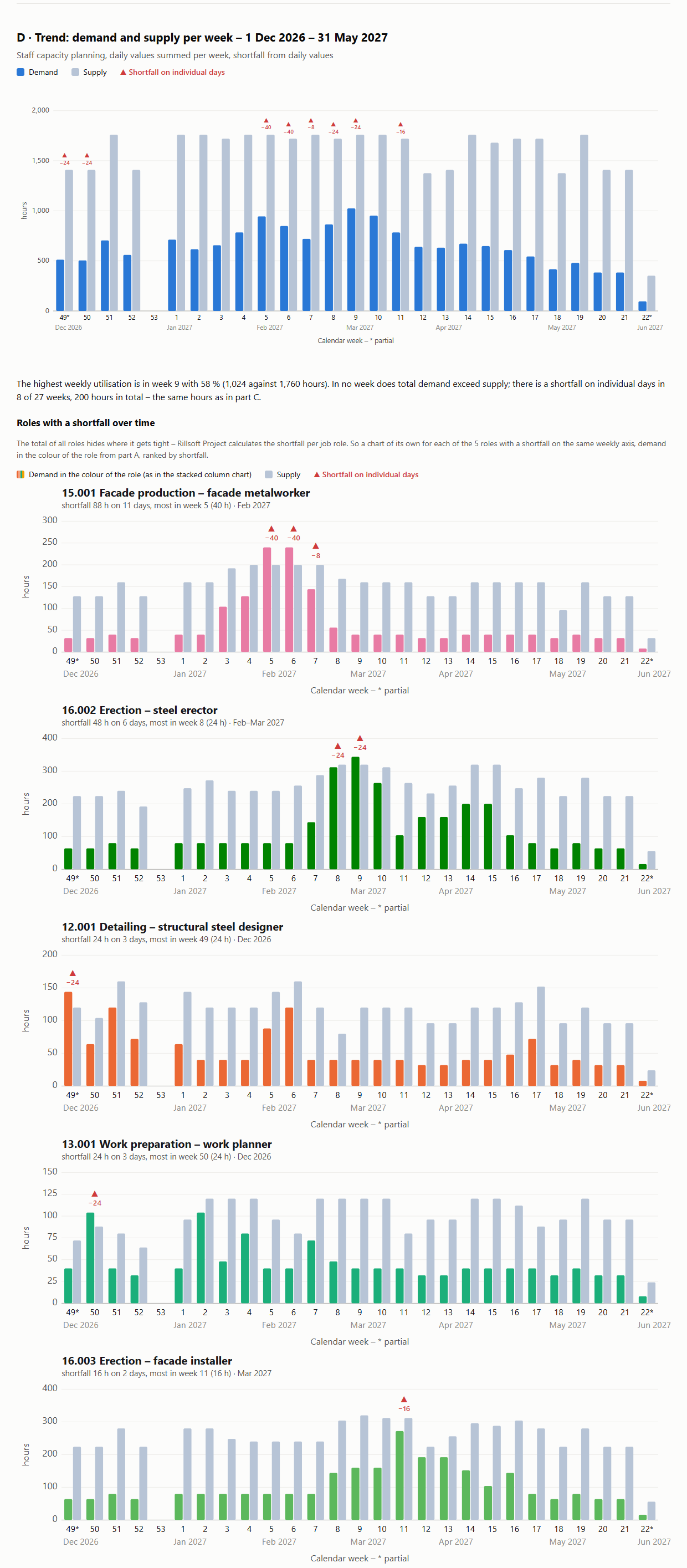
2. Demand and supply over time: per period of the time scale two columns, demand and supply, on one axis; above them the shortfall from daily values; plus a chart of its own for every role with a shortfall on the same time axis.
3. Attention list: projects by need for action – overall light, then number of red and amber lights, then the values of those that are not green in the order schedule, resources, progress, costs; per project the figures behind the colour and what to clarify, marked as a recommendation.
Read each view once and use the figures for all chapters; capacity always from the staff capacity comparison at day scale. Calculate capacity per role only, not per team. Check the totals in each chapter; if one differs, name the difference instead of the chapter. Every sentence in the result carries a figure from Rillsoft Project; recommendations only when marked as such. Reset the view afterwards, undo every plan change and do not save project files.
Output: Provide the complete management report as a downloadable PDF file in A4 landscape. Use readable charts, complete tables and clean page breaks; check that nothing is clipped before providing the file. Also give three key findings with figures from the report in the chat. If you cannot create a PDF, provide a print-ready HTML file instead and explain “Open in a browser → Print → Save as PDF”. If you cannot provide a file, output the complete HTML code and state that limitation. Link only to files you have actually created.Configure a management analysis
Choose the scope, period and verified chapters. This page assembles your prompt. Copy it into your connected AI client. The prompt requests a PDF in A4 landscape and three key findings in the chat; print-ready HTML is the fallback when PDF creation is unavailable.
Your selection is processed in the browser. The configurator does not read project data or run an analysis. Your connected AI client then accesses Rillsoft Project; transmission to an AI provider depends on that client’s settings and terms. Connect your AI client
Your prompt
Create a management dashboard from Rillsoft Project with the chapters below.

First ask me for these details and do not guess:
- Scope: single project, selected projects or portfolio (name the open one and let me confirm),
- Period: start and end (if I give none, suggest the project period),
- Time scale: day, week, month or quarter (suggest one with at most about 30 intervals),
- Capacity unit: hours, person-days, person-weeks or FTE (name the one set in the project; FTE is available for demand only),
- Reference date: name the project's status date.
Summarise the details in one sentence before reading any data.

Chapters:
1. Overall status: per project traffic lights for schedule, progress, resources and costs – schedule amber above 0, red above 5 working days of shift of fixed milestones; progress amber above 5, red above 15 percentage points behind; resources amber above 0, red above 10 % proportional shortfall; costs amber above 5, red above 10 % against the baseline, in a portfolio per project from the project file, “not rated” without a baseline. The overall light is the worst rated light; for every light that is not green, the figure behind it.
2. Attention list: projects by need for action – overall light, then number of red and amber lights, then the values of those that are not green in the order schedule, resources, progress, costs; per project the figures behind the colour and what to clarify, marked as a recommendation.

Read each view once and use the figures for all chapters; capacity always from the staff capacity comparison at day scale. Calculate capacity per role only, not per team. Check the totals in each chapter; if one differs, name the difference instead of the chapter. Every sentence in the result carries a figure from Rillsoft Project; recommendations only when marked as such. Reset the view afterwards, undo every plan change and do not save project files.

Output: Provide the complete management report as a downloadable PDF file in A4 landscape. Use readable charts, complete tables and clean page breaks; check that nothing is clipped before providing the file. Also give three key findings with figures from the report in the chat. If you cannot create a PDF, provide a print-ready HTML file instead and explain “Open in a browser → Print → Save as PDF”. If you cannot provide a file, output the complete HTML code and state that limitation. Link only to files you have actually created.
In your words
- Monthly report: Make me a management dashboard for the portfolio next quarter with overall status, attention list and the trend of demand and supply. Provide the complete report as a downloadable PDF in A4 landscape, with readable charts, complete tables and clean page breaks. Also give three key findings with figures in the chat. If you cannot create a PDF, provide a print-ready HTML file to save as PDF. Link only to files you have actually created.
- Half year, roles: Make me a management dashboard with the roles chapter for our portfolio from December to May, in hours, course per week. Provide the complete report as a downloadable PDF in A4 landscape, with readable charts, complete tables and clean page breaks. Also give three key findings with figures in the chat. If you cannot create a PDF, provide a print-ready HTML file to save as PDF. Link only to files you have actually created.
- Single project: Create a management dashboard for this project with delivery dates, progress gap and overloaded roles. Provide the complete report as a downloadable PDF in A4 landscape, with readable charts, complete tables and clean page breaks. Also give three key findings with figures in the chat. If you cannot create a PDF, provide a print-ready HTML file to save as PDF. Link only to files you have actually created.
What you need
- An open project or portfolio with maintained actual progress, a set status date, committed dates as fixed milestones and job roles on the tasks; a resource pool with people in these roles.
- Answers to the AI’s questions – or the prompt from the configurator on this page, which already contains the details and chapters.
- An AI client that can create charts and files. Direct PDF download requires PDF creation; otherwise the prompt requests print-ready HTML that you can open in a browser and save as PDF via Print. Rillsoft Project supplies the figures.
- Chapters using planned progress require write access: the AI has planned progress calculated, undoes the change and checks the result. Views, time filters and time scales are changed. For portfolio costs, it opens the project files and then reopens the portfolio without saving. The status date and effort unit must be checked, and any changes must be reported.
View more report pages and the roles example
What you get
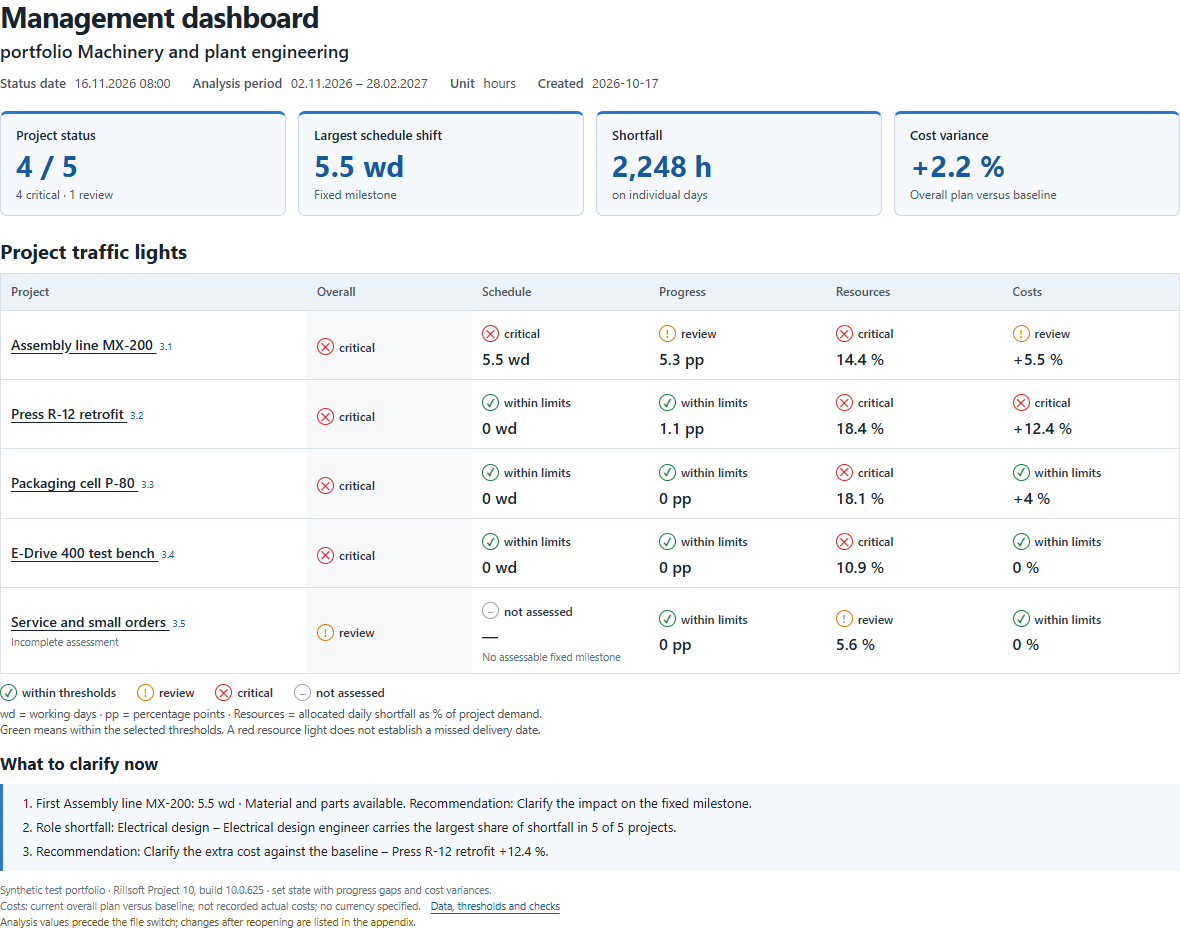
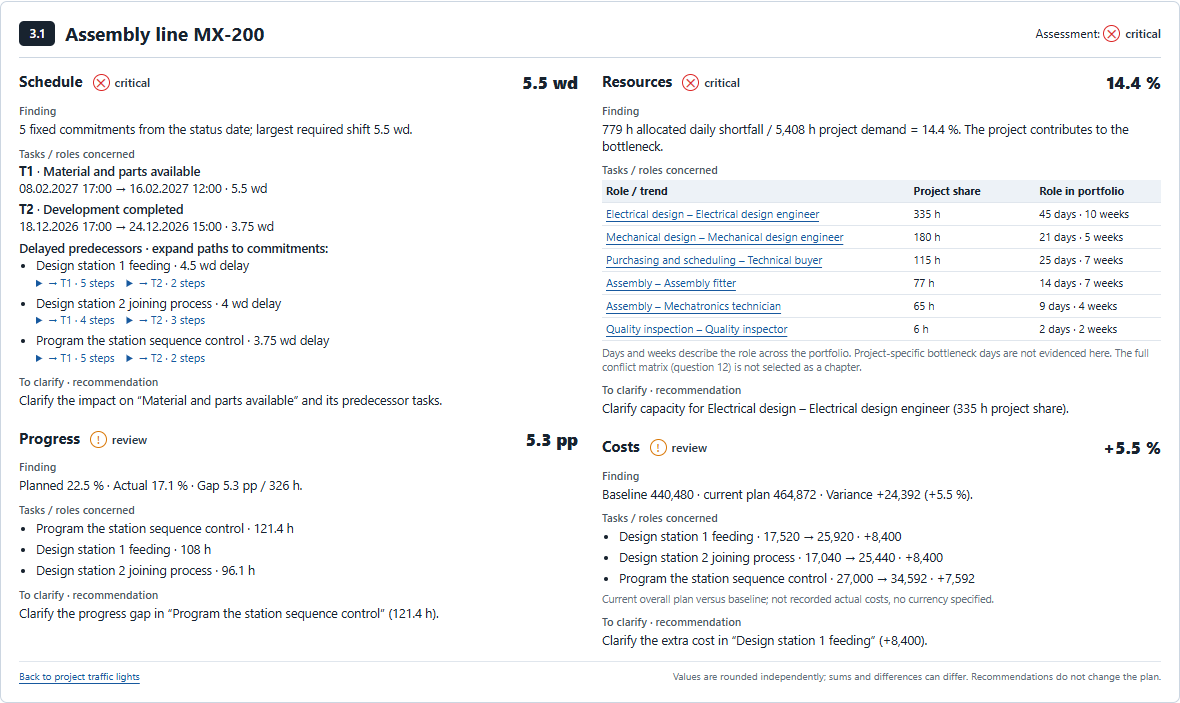
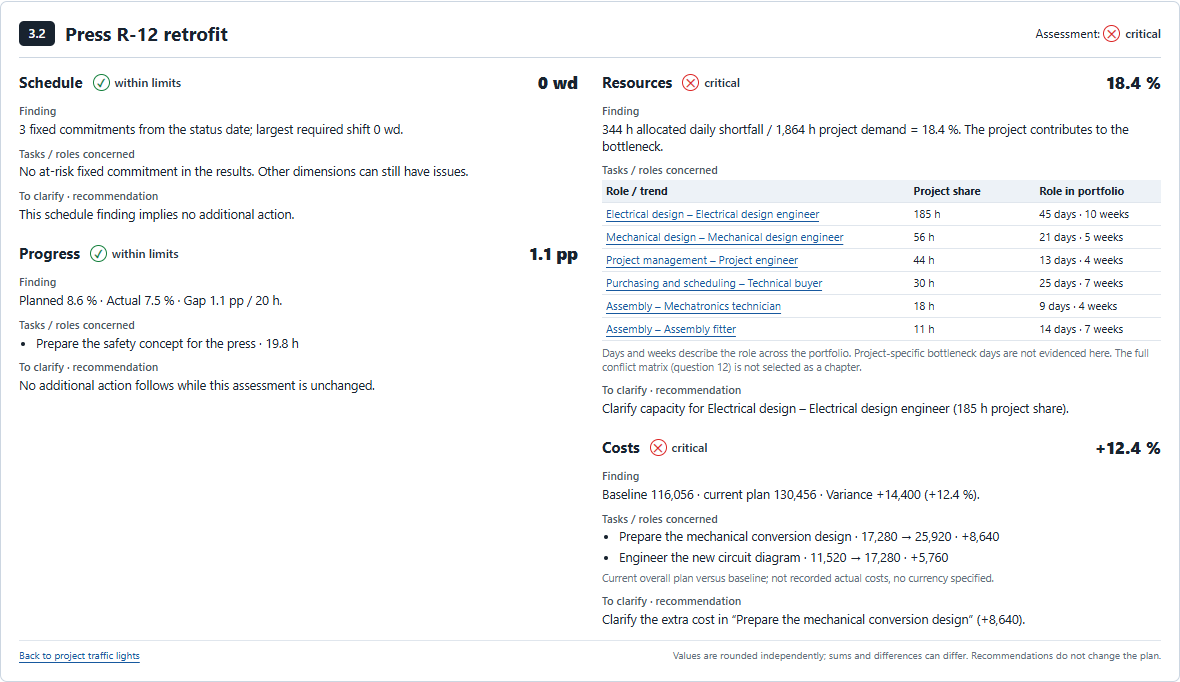
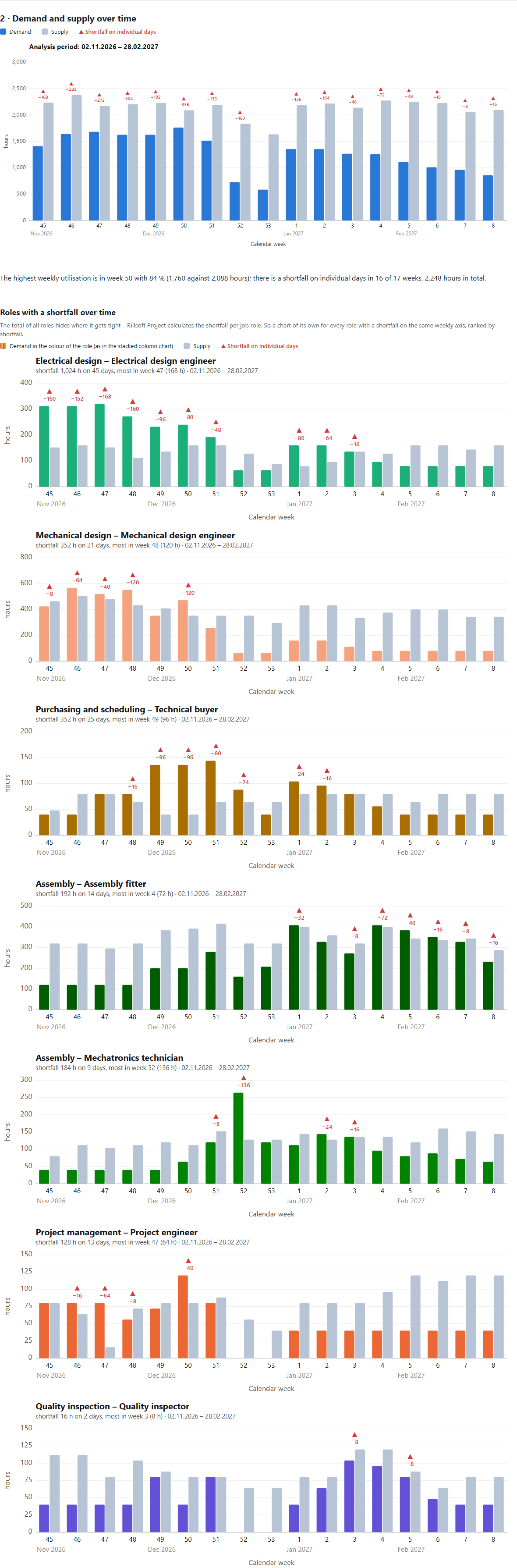
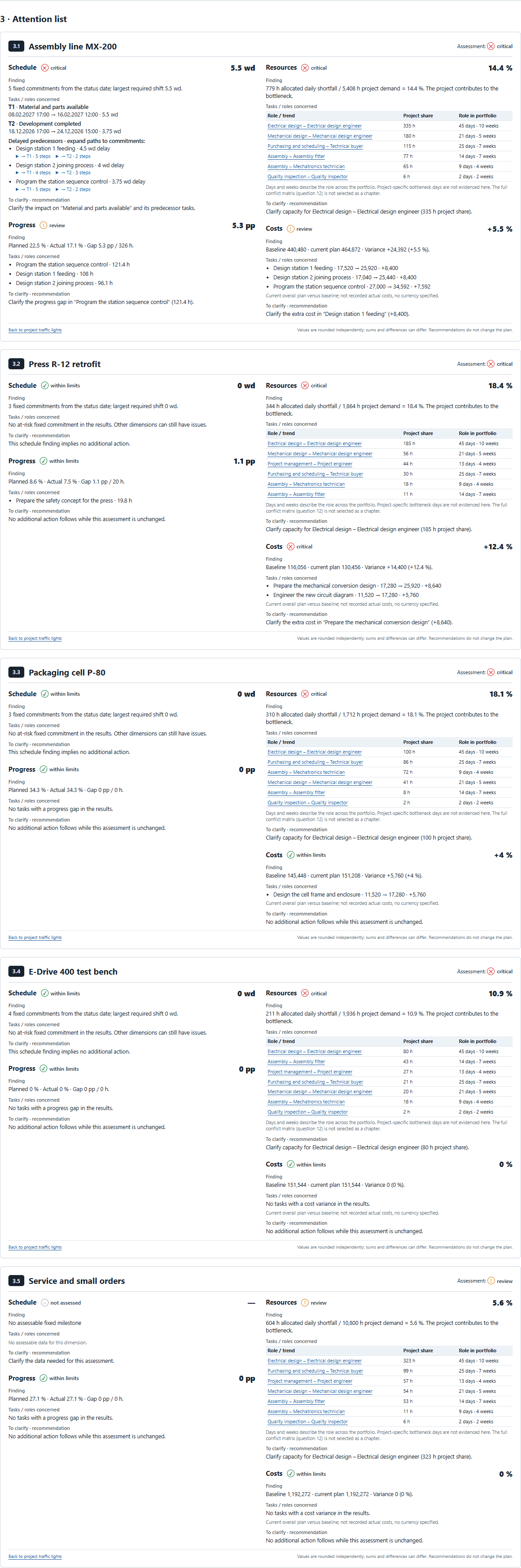
A dashboard from chapters you choose. The first example came from the configurator prompt for the test portfolio Machinery and plant engineering (five projects; status date 16 Nov 2026, a backlog in two projects and extra effort against the baseline in three projects set for the test), 2 Nov 2026 to 28 Feb 2027, in hours, with three chapters: overall status, demand and supply over time and attention list. Four of five projects are red; Assembly line MX-200 needs attention first because “Material and parts available” would have to move by 5.5 working days and 779 hours of demand on bottleneck days are not covered; Press R-12 retrofit follows with a red cost light, 14,400 above the baseline (12.4 %). 21,720 hours of demand face 36,376 hours of supply; in no week does total demand exceed supply, yet 2,248 hours are short on individual days – and for each of the seven roles with a shortfall chapter 2 shows a chart of its own on the same weekly axis, because Rillsoft Project calculates the shortfall per role. All chapters read the same figures: lights, costs and ranking match the overall status, demand and shortfall of the trend match chapter 1; the AI reads the costs last from the project files and reopens the portfolio.
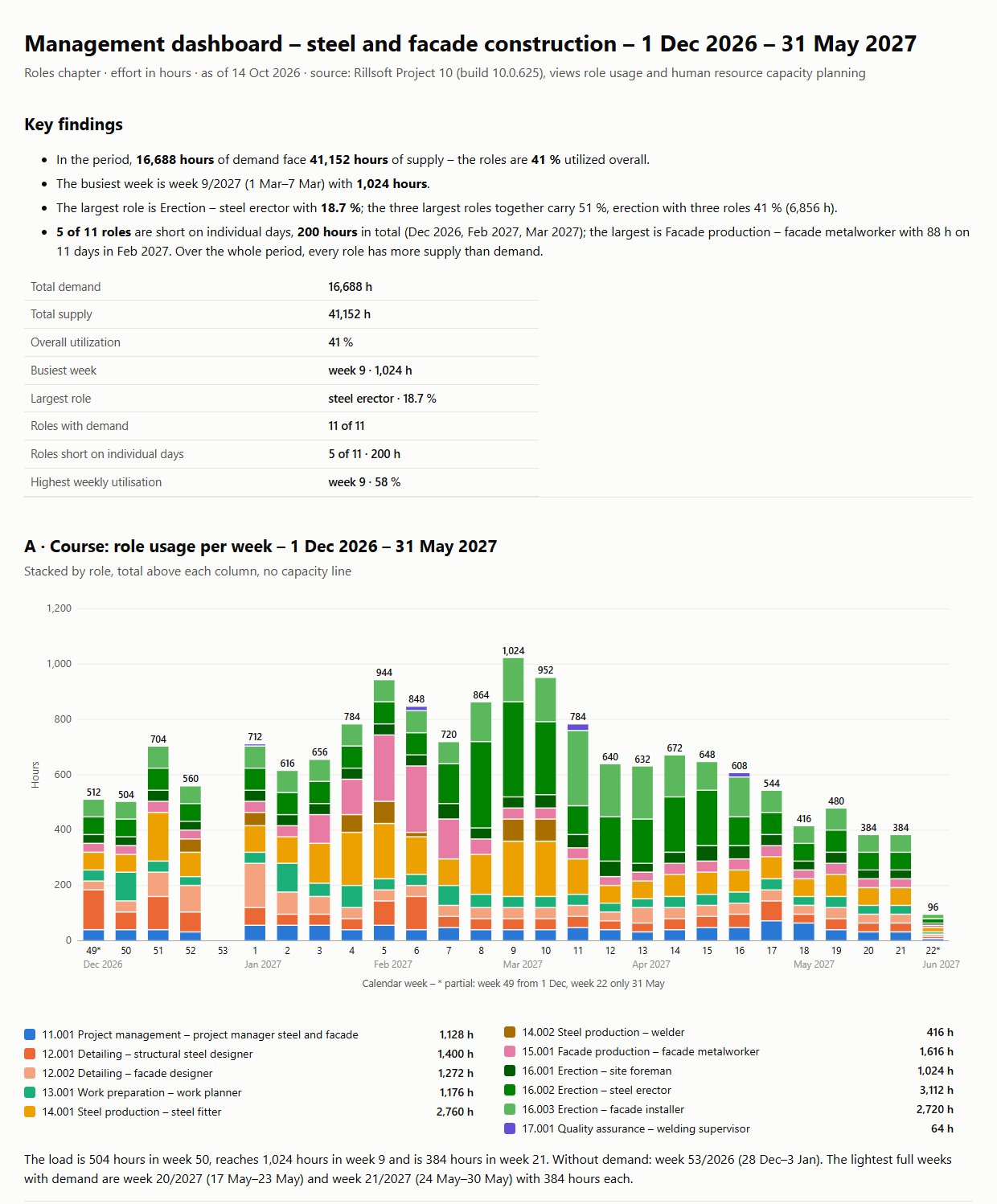
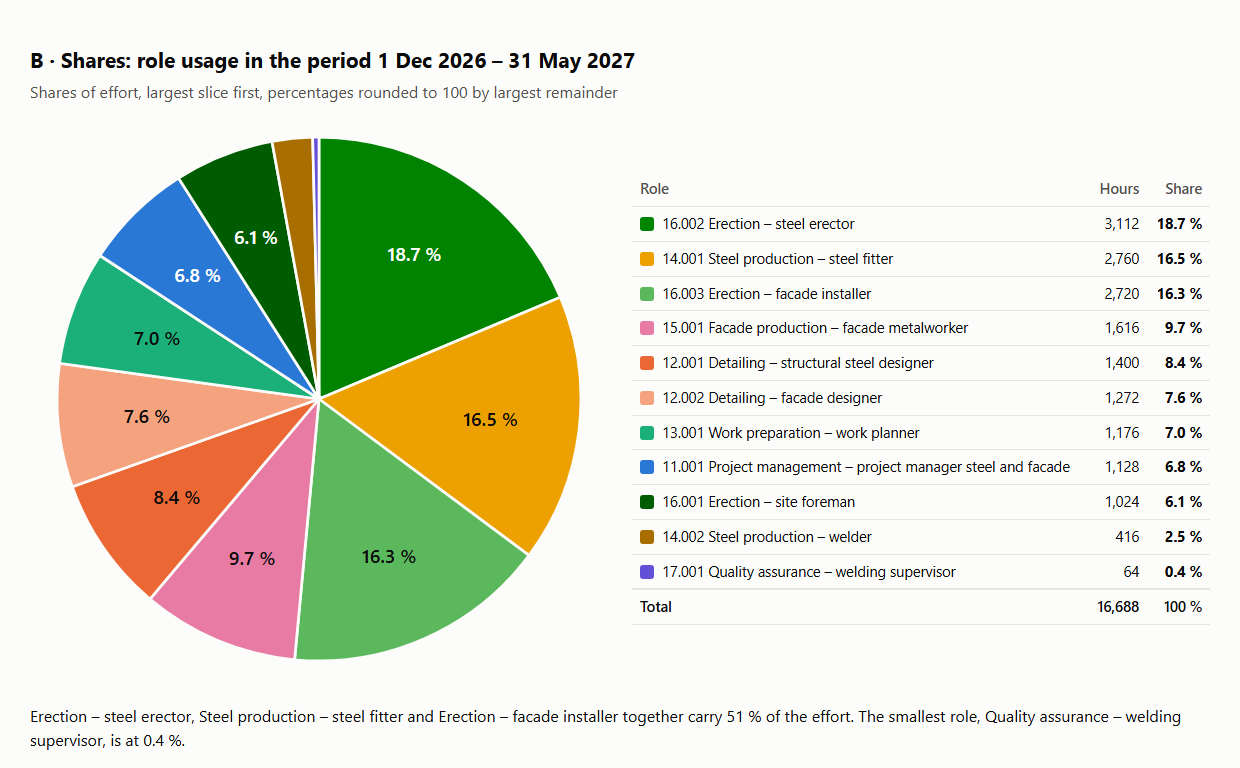
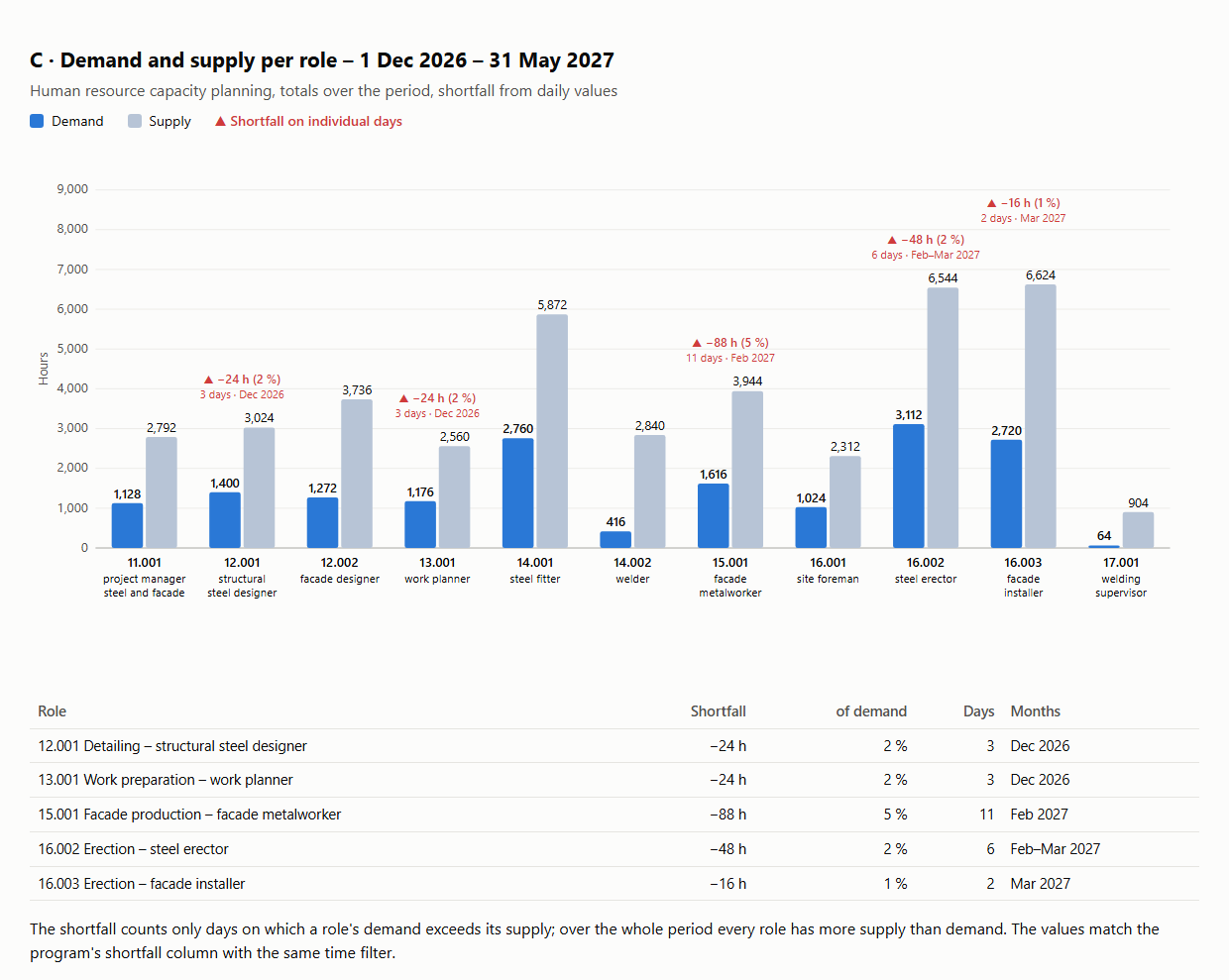
The roles chapter shows a second example from the test portfolio steel and facade construction, December 2026 to May 2027: 16,688 hours of demand against 41,152 hours of supply, 41 % utilization, busiest week 9/2027 with 1,024 hours, largest role Erection – steel erector with 18.7 %. 5 of 11 roles are short on individual days, 200 hours in total – exactly the values of the shortfall column in the capacity planning; week by week, demand never exceeds supply.
How the answer is produced
The AI asks for the details once or takes them from the configurator prompt, reads each view once and uses the figures for all chapters: the project structure with float for the schedule, planned progress with an immediate undo, the staff capacity comparison per role at day and week scale and per role and project. Each chapter follows the rule of its question, such as overall status, demand and supply over time and attention list; the roles chapter also reads the role usage. Finally it checks the totals per chapter and resets the view.rillsoft_view_state_get rillsoft_project_tree_get rillsoft_calendar_list rillsoft_project_conflict_list rillsoft_task_progress_recalculate rillsoft_history_undo rillsoft_view_state_apply rillsoft_timescale_apply rillsoft_analysis_report_get rillsoft_portfolio_file_open rillsoft_project_file_open rillsoft_variance_report_get
Limits
The dashboard rates the plan at the status date, not a forecast; recommendations are suggestions, management decides on measures. The AI reads the cost light last, per project from the cost variance of the project file against the baseline (current plan, no actual costs); without a baseline it stays “not rated”, and after the file switch the AI checks status date and unit. The roles chapter describes roles, not people. Supply counts skill capacity, not heads; absences and calendars are included. It can be compared with the program view only with the same time filter – without a time filter Rillsoft Project shows the whole project period, and the shortfall percentages then refer to a different demand. Preferred teams on a sub-project change the supply. The individual charts also exist as prompts of their own; the product page of Rillsoft Project describes the resource and capacity views. Related prompts:Try it
Get started- Industry package
Machinery and plant engineering.rpp; roles chapter: Stahl- und Fassadenbau.rpp- Product version
- Rillsoft Project 10 (Build 10.0.625)
- Last verified
- 2026-10-17
- Verification
- Figures and statements verified on the named sample package against the named product build – MCP session, view and report; German and English package with identical figures.