All people, companies and projects shown are synthetic Rillsoft sample data – from the shipped industry packages or, where stated, from a test project.
The prompt
Create a stacked column chart from the role usage in Rillsoft Project. First ask me for the project or portfolio, the period, the time scale (day, week, month, quarter) and the time unit (hours or person-days). Each column is one period of the time scale and shows the total of all job roles; each role is a coloured segment, the total sits above the column. No capacity line. Business dashboard style.Changes the project (one undo step)
Show the detailed prompt
Create a professional, easy-to-read stacked column chart of the role usage from Rillsoft Project.
First ask me for:
- Object: which project or portfolio (name the open one and let me confirm it),
- Period: start and end,
- Time scale: day, week, month or quarter (one column per period),
- Time unit: hours or person-days (name the one set in the program).
Data:
- Set the role usage view, grouped flat by role, absolute presentation, time filter on the period, time scale as given. Read the report and do not recalculate anything from the plan.
- Each column is one period of the time scale; it consists of one segment for each role with demand in the period.
- The column height is the total of all roles in the time unit.
- Mark edge periods that the period only partly covers.
Presentation:
- X axis: periods of the time scale; Y axis: effort in the time unit, from 0.
- Each role its own clearly distinguishable colour, the same in every column; segments stacked, not side by side.
- The total above each column as a number.
- No capacity line, no planned-versus-actual comparison.
- Business look in dashboard style, subtle gridlines, legend on the right or at the bottom, readable font.
- Title: “Role usage per <time scale> – <period>”, below it the object and the unit.
- Footer: total usage in the period, highest column with its period, number of periods with usage, source with date.
Afterwards restore the previous view state and do not save the project.In your words
- Steel and facade construction: Show me our portfolio's role usage in December per day as a stacked chart, in hours.
- Monthly report: Make a column chart of the role usage per month until the end of May for management, in person-days.
- Quarterly planning: How is next year's effort spread across the roles per quarter? Please as stacked columns.
What you need
- An open project or portfolio whose tasks carry job roles.
- Answers to the AI’s four questions: object, period, time scale and time unit.
- An AI client that can draw charts (as an image, HTML or a file). Rillsoft Project supplies the figures, not the chart.
- Read-only mode is not enough: the AI changes view, time filter and time scale – one undo step each; business data stays untouched, and at the end it restores the view.
What you get
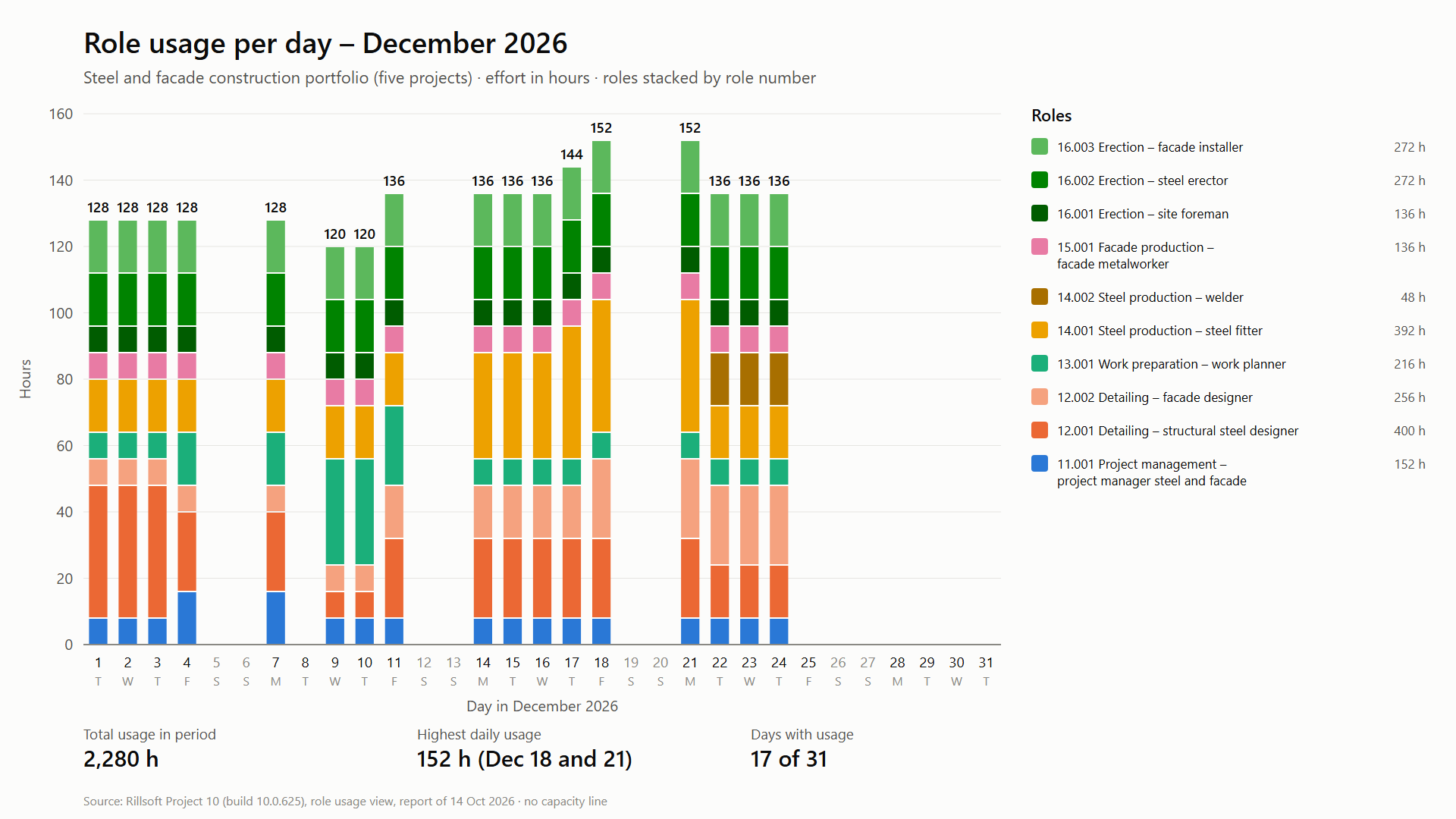
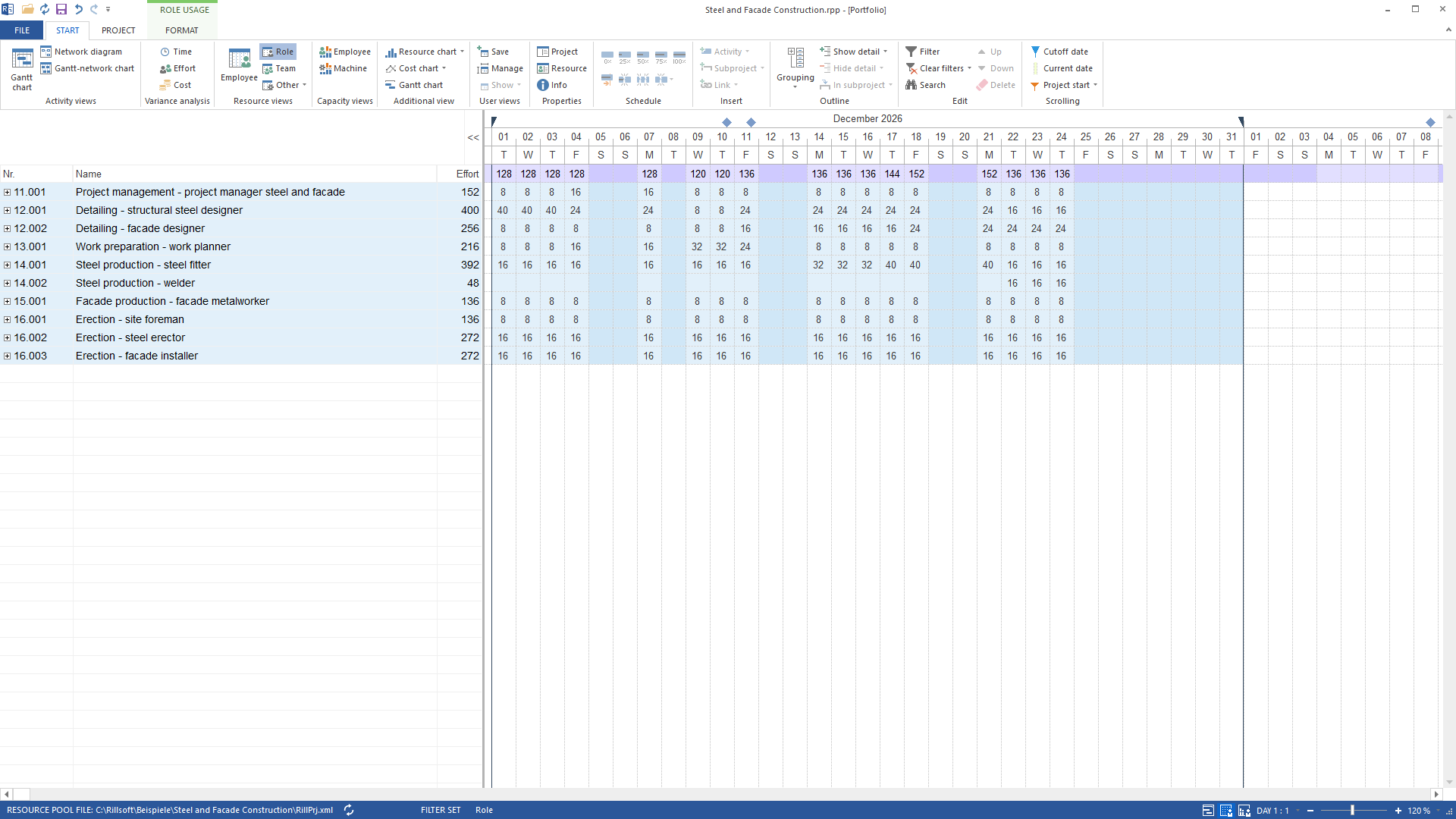
A stacked column chart with one column per period, one segment per role, the total above each column and three key figures in the footer. In the steel and facade construction test portfolio (five projects, three of them running in December) the prompt returns ten roles with 2,280 hours in total for December 2026 per day. The highest columns reach 152 hours on 18 and 21 December, 17 of 31 days carry usage. Weekends, 8 December and the days from 25 December stay empty.
Detailing and steel production together account for almost half the hours (1,096 of 2,280), the three erection roles for another 680. Every figure is also in the role usage view – the totals row is the column height. The data is German; the AI translates the role names for an English chart, and the screenshot comes from a copy whose resource pool carries the same translated role names.
Why it is useful
The role usage in Rillsoft Project is a table: exact, but hard to read for management. The stacked chart shows at a glance when the load is high and which roles carry the peaks – without anyone copying figures into a spreadsheet. Because the AI only adds up what Rillsoft Project has calculated, the picture matches the plan.How the answer is produced
The AI asks for the four inputs, sets the role usage view flat by role with absolute presentation, time filter and time scale, and reads the report: one value per role and period. Periods without demand are missing from the report – so the AI builds the axis from the period and sets them to zero. Then it draws the chart and restores the view. The unit comes from the program’s effort unit; for person-days the AI switches it there after asking instead of converting with eight hours per day itself.rillsoft_project_tree_get rillsoft_view_state_get rillsoft_view_state_apply rillsoft_timescale_apply rillsoft_analysis_report_get
Limits
The chart shows demand, not capacity or overload – that is what comparing demand with capacity per week is for. If the period cuts into a week or a month, the report counts only the part inside the period; the AI marks such edge columns. Beyond about 30 columns the chart becomes unreadable – choose a coarser time scale. If there are more roles than clearly distinguishable colours, roles of the same department get shades of one hue. The product page of Rillsoft Project describes the resource views.Try it
Get started- Industry package
Stahl- und Fassadenbau.rpp- Product version
- Rillsoft Project 10 (Build 10.0.625)
- Last verified
- 2026-10-14
- Verification
- Figures and statements verified on the named sample package against the named product build – MCP session, view and report; German and English package with identical figures.